Why DroidVault isn’t on Google Play
The short version: Google Play only lets an app read your text messages if it can also put them back, or if it’s your phone’s texting app. DroidVault is a backup tool, so Google said no. That’s a rule about what kind of app may read texts, not a judgment about whether DroidVault is safe. This page explains what installing from our website involves, why it’s safe, and what each warning on your phone means.
Google Play has a rule about texts.
Google Play has a policy for apps that read text messages and call history. In plain terms, an app may read your texts only if it is the phone’s default texting app, or if it backs them up and restores them. DroidVault reads your texts to back them up to your PC, and it doesn’t restore them yet. (Restore is planned as a free update; it isn’t available today.) Google reviewed the app three times and turned it down each time on that rule.
That’s a reasonable way for Google to run its store. It just leaves no room for an app that only backs up. So instead of Google Play, you get the DroidVault phone app from droidvault.app. It’s the same app: free, signed by Gigadyne LLC, and it updates itself from this website.
Nothing about this changes what the app does or where your data goes. Your backup still travels only from your phone to your own PC.
It’s like installing a Windows program from the maker’s site.
On a PC, you can get software from the Microsoft Store or download it straight from the company that makes it. Android works the same way. Getting an app from a website instead of Google Play is called sideloading, and it’s a normal, supported part of Android. It just takes a few extra taps.
Because Android didn’t get the app from Google Play, it can’t vouch for it, so it shows a set of warnings during the install. Those warnings appear for any app installed this way. They’re about where the app came from, not what’s inside it. Once DroidVault is installed, it works like any other app on your phone.
The install takes a few minutes. The phone setup guide walks you through every tap, and the list further down this page shows each message before you see it on your phone.
Six things you can check for yourself.
We can’t put a Google Play badge on the app, so here is what we offer instead: facts you can verify.
Signed by Gigadyne LLC
Every copy of the DroidVault app carries Gigadyne LLC’s digital signature. The fingerprint of our signing certificate is published below and on the setup guide, so you can compare it with the file you downloaded.
Updates are checked by signature
Android only installs an update to DroidVault if it carries the same Gigadyne LLC signature as the copy already on your phone. Nobody can swap your copy for theirs, not even through this website.
Your backup goes only to your own PC
Texts, call log, photos, videos, contacts, and calendar travel over an encrypted connection on your own Wi‑Fi to the Windows PC you paired with. Your phone checks the PC’s security code before it sends anything. There is no cloud, no server of ours in the middle, and no account.
Nothing comes to Gigadyne
We never receive your backup or anything in it. Apart from your PC, the only place the app ever connects to is droidvault.app, at most once a day, to ask whether a newer version exists. That request carries no personal data. Details are in the privacy policy.
What it never does
It never uploads your data anywhere, never asks you for an account or a password, and never sends anything to us. It reads only what you allow it to read, and only to copy it to your PC.
Check the download yourself
We publish the SHA-256 fingerprint of every app file and of our signing certificate. If you like, compare them with the file you downloaded; the setup guide shows how. Check your download →
Our signing certificate’s SHA-256 fingerprint, which stays the same from version to version:
95c9a7357fdaa5a98b58c52ac67d9bd6bb4ec1430df023bd39c7fcb6e848975e
The fingerprint of the app file itself changes with each version. The current one is on the setup guide.
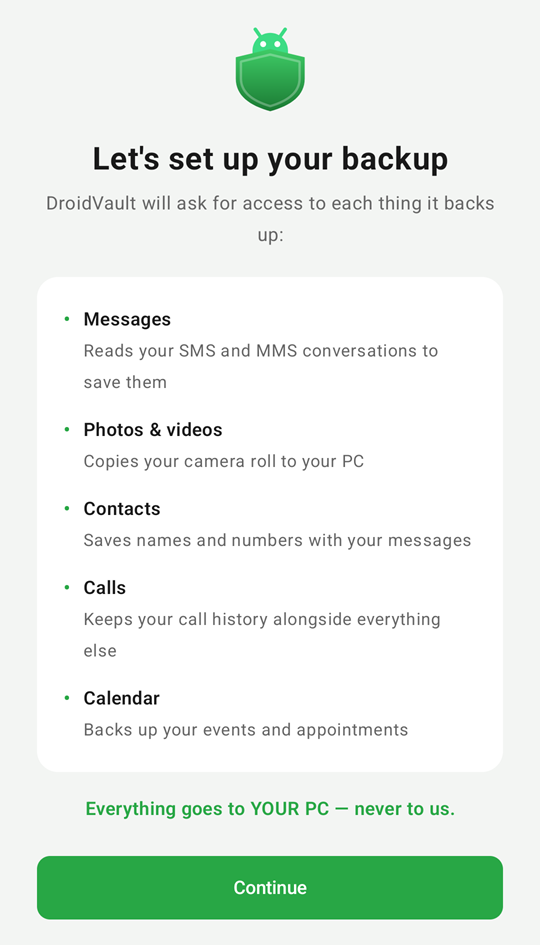
Every message, in the order it appears.
These screenshots were taken on Android 17. Other phones and Android versions word things a little differently; the meaning is the same. Each one is explained in more detail in the setup guide.
-
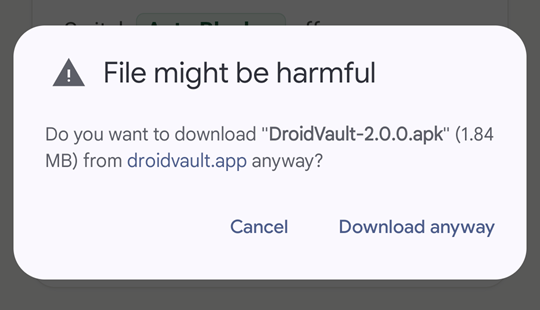 When you tap the download button
“File might be harmful”
Chrome shows this for any Android app file downloaded from a website rather than an app store. It’s a reminder that you’re downloading an app, not a document. Check that it says droidvault.app, then tap Download anyway.
-
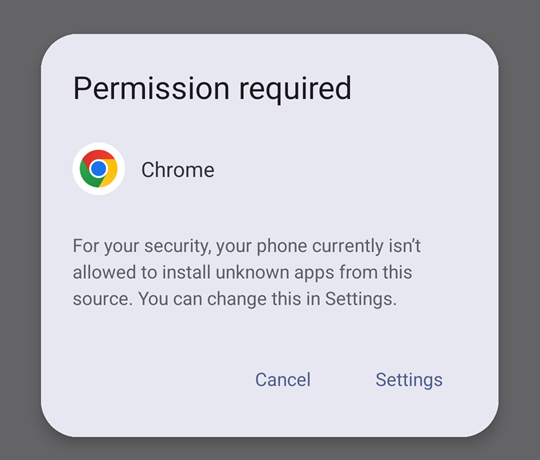 When you open the downloaded file
“Permission required”
Android doesn’t let Chrome install apps until you say so. Tap Settings. You’re about to give that permission to Chrome, not to DroidVault, and you can switch it off again afterwards.
-
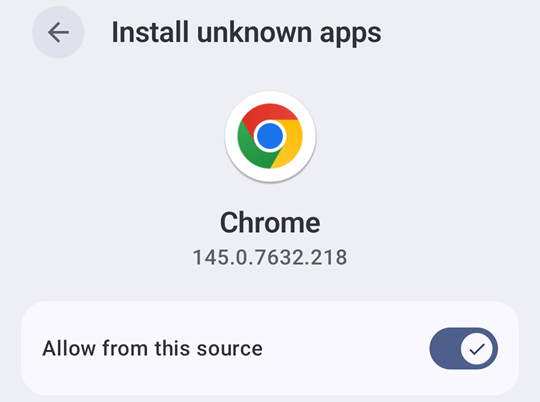 On the Install unknown apps screen
“Allow from this source”
Turn the switch on. The warning text on this screen is Android’s standard wording, and it applies to any app installed outside Google Play. After you switch it on, the install prompt comes back on its own.
-
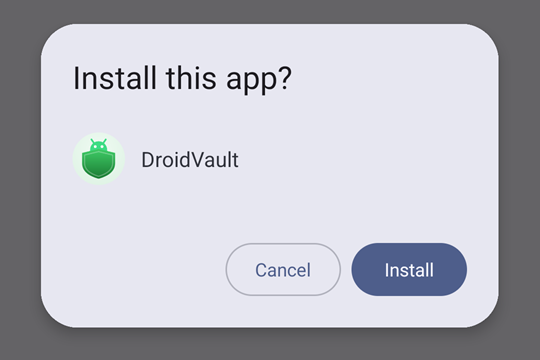 The install itself
“Install this app?”
This is Android’s normal install prompt. Check that it says DroidVault, then tap Install.
-
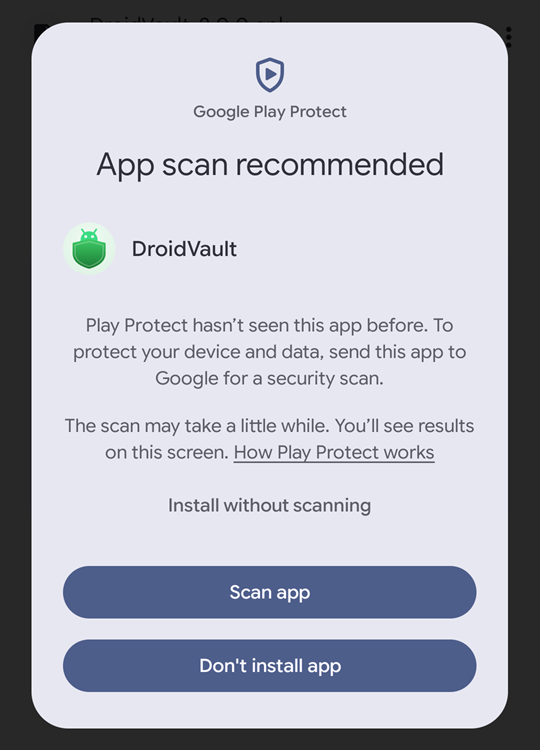 May appear after you tap Install
“App scan recommended” (Google Play Protect)
Play Protect hasn’t seen DroidVault before, because DroidVault isn’t distributed through Google Play. It warns; it doesn’t block. Tap More details, then Install without scanning.
On some phones the wording is different, for example a question about whether you trust the app. Choose the option that installs.
-
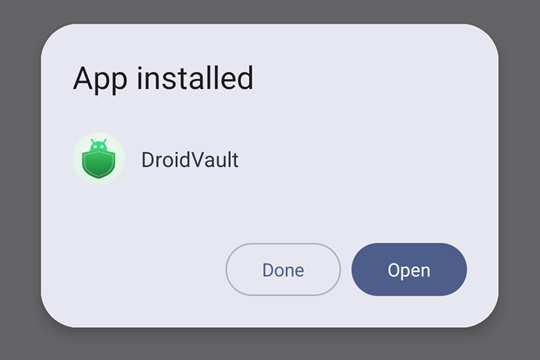 When the install finishes
“App installed”
That’s the install done. Tap Open.
-
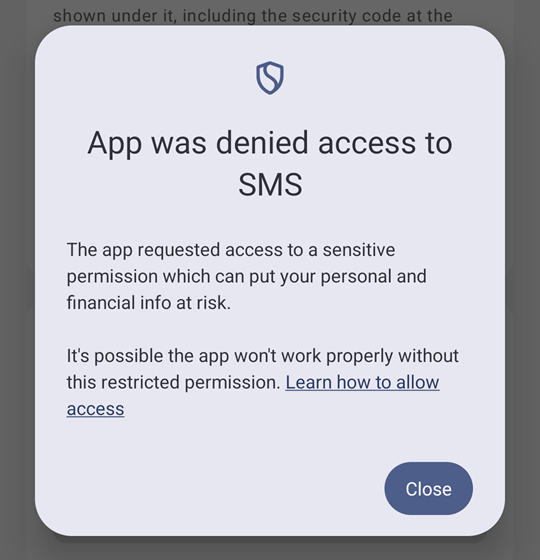 The first time DroidVault asks for texts (Android 15 and newer)
“App was denied access to SMS”
On Android 15 and newer, Android turns down the texts and call log permissions on its own the first time, for any app installed from outside an app store that asks for them. Tap Close. The next item is the fix.
-
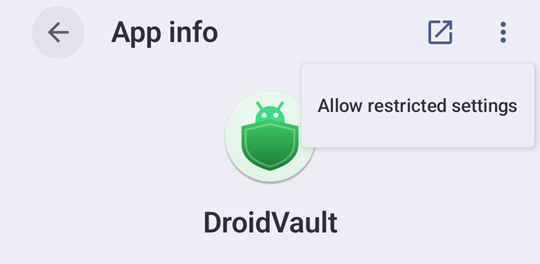 In Settings › Apps › DroidVault
“Allow restricted settings”
On DroidVault’s App info screen, tap the three-dot menu in the top-right corner and choose Allow restricted settings; Android asks for your fingerprint or PIN. Then tap Permissions and allow SMS and Call logs. After that, DroidVault can back up your texts.
Using a Samsung phone? Turn off Auto Blocker before you start (setup step 1). Last of all, tell your phone not to put DroidVault to sleep, so scheduled backups keep running (setup step 7).
Ready? Follow the setup guide.
Eight short steps, with each message shown before you see it. If something on your phone looks different from these pictures, email [email protected] with its exact words before you continue.